
Find all your stored passwords on MacOS and Windows.
Matt Elliott/CNETYour computer is connected to Wi-Fi, but you also want to get online with your other devices, such as your phone or tablet. If you're at home, that's easy enough -- you've most likely memorized the network passcode, and if you haven't, it's probably on the back of your router. However, if you're in public or at someone else's home, you might not know the password or be able to find it. Luckily, your computer might have the Wi-Fi password stored somewhere.
The first time you connect to Wi-Fi on your Mac or Windows PC, both the network name and password are stored. That's why your computer is able to connect automatically to that same Wi-Fi network the next time you're in the area. And if you need that same password to connect your iPad Air or Pixel 6 Pro to the internet, you can easily find it in your computer's settings.
Whether you have a MacBook Pro running MacOS Monterey or an HP Pavilion All-in-One with Windows 11, here's how to find the passwords to all of the Wi-Fi networks you've ever connected to on MacOS and Windows.
How to find Wi-Fi passwords on MacOS
Every password you've entered and saved on a Mac is stored in Keychain Access, the password management system for MacOS. And that includes Wi-Fi network passwords.
To start, use the search feature to open the Keychain Access app and do the following:
1. Click on System under System Keychains in the sidebar.
2. Next, click on Passwords at the top of the window.
3. Find the Wi-Fi network you want the password for and double-click on it.
4. Finally, check the box next to Show password and enter your password when prompted.
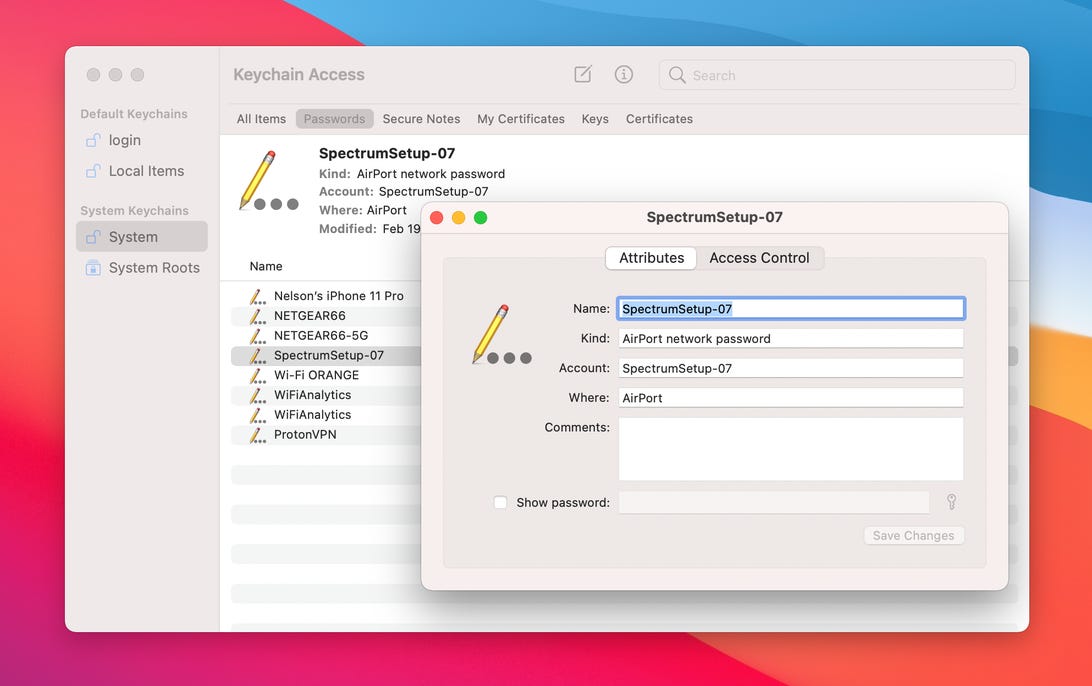
Find all your stored Wi-Fi passwords in the Keychain Access app on MacOS.
Screenshot by Nelson Aguilar/CNETThe blank password field will then show the password you used to log in to that Wi-Fi network. You can then double-click in the password field to select the password and copy it to your clipboard, if needed.
How to find Wi-Fi passwords on Windows
Finding the password to the Wi-Fi network you're currently connected to is simple on Windows, but getting your hands on all stored Wi-Fi passwords takes a bit of work, so we'll discuss both methods below.
To find the password to the Wi-Fi network you're currently connected to on Windows:
1. Click the Start button and then go to Control Panel > Network and Internet > Network and Sharing Center (Windows 11) or Settings > Network & Internet > Status > Network and Sharing Center (Windows 10).
2. Next to Connections, click your Wi-Fi network name highlighted in blue.
3. In the Wi-Fi Status page that opens, click Wireless Properties and then on the Security tab.
4. Finally, check the box next to Show characters to display your Wi-Fi network password above it.
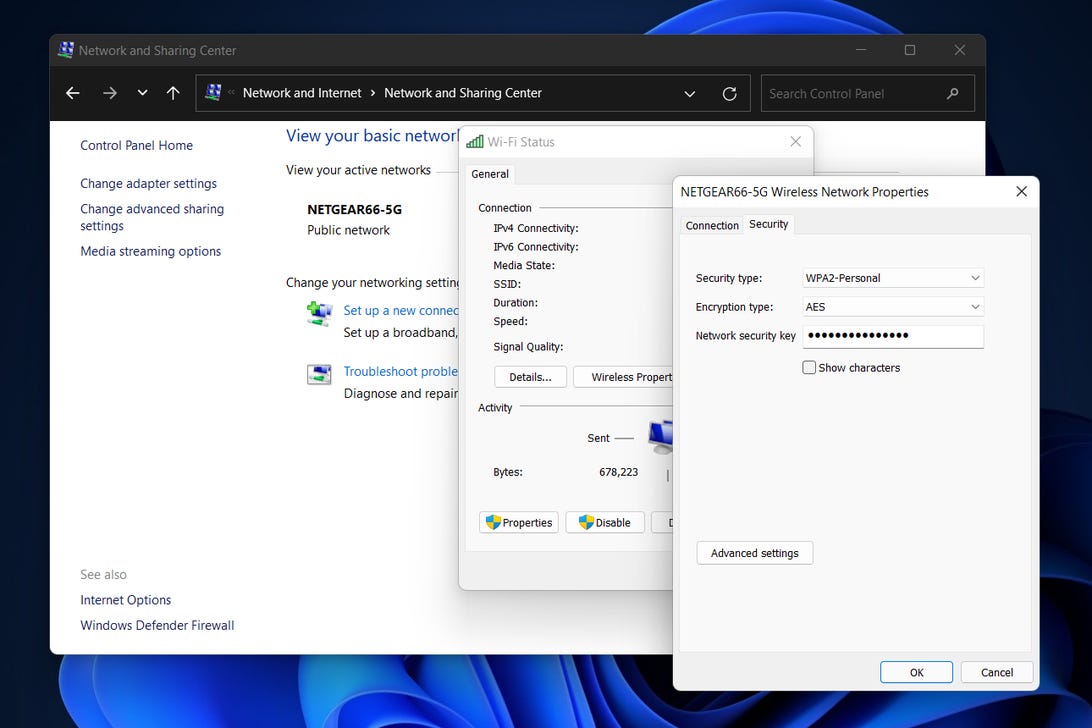
You can easily find the password for the Wi-Fi network you're currently connected to on Windows.
Screenshot by Nelson Aguilar/CNETHowever, this isn't the only way to find your Wi-Fi network passwords. The method above only allows you to view the password to whatever Wi-Fi network you're currently connected to, but there is a way to find the passwords to all the Wi-Fi networks you've ever connected to on your Windows computer.
To find all your Wi-Fi network passwords on Windows:
1. Right-click on the Windows icon in the taskbar on your desktop.
2. Click Windows Terminal (Admin).
3. Type in netsh plan show profile and hit Enter on your keyboard to view every Wi-Fi network you've connected to.
4. Once you find the Wi-Fi network you want the password for, type in netsh wlan show profile "(Wi-Fi network name)" key=clear (for example, netsh wlan show profile "Netgear667" key=clear), and then hit the Enter key.
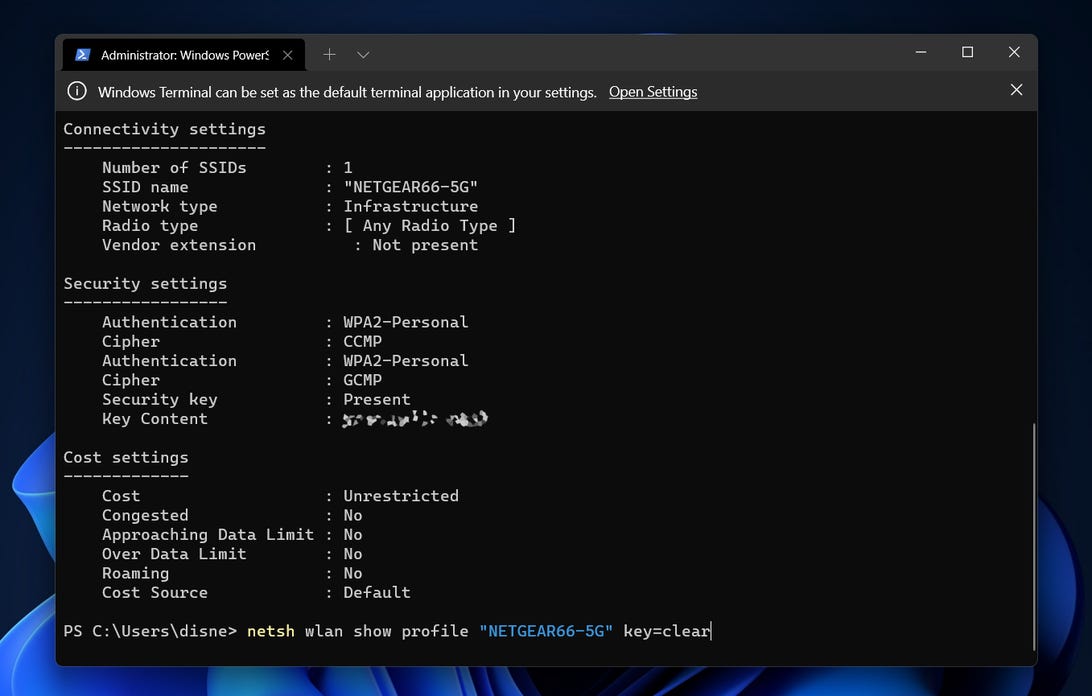
You can use Windows Terminal to find all your Wi-Fi network passwords.
Screenshot by Nelson Aguilar/CNETSettings for profile, connectivity, security and cost will appear. The Wi-Fi network password will appear under Security settings, and next to Key Content. In addition to Windows Terminal, you can also use the Command Prompt application to type in the commands listed above to find your Wi-Fi passwords.
If you want to read more about passwords, whether it's on your computer or your smartphone, check out the best password managers to use and nine rules to follow when creating a password.
"network" - Google News
March 10, 2022 at 01:30AM
https://ift.tt/vIjP3oV
Easily Find the Wi-Fi Password of Any Network You've Connected To. Here's How - CNET
"network" - Google News
https://ift.tt/JMs40SD
Shoes Man Tutorial
Pos News Update
Meme Update
Korean Entertainment News
Japan News Update




No comments:
Post a Comment